Samsung Account: Login, Sign Up & Recovery Guide (2026)
Learn how to create, log in to, and recover your Samsung Account. Step-by-step guide with benefits, password reset tips, and security advice for 2026.
By Alishan | November 03, 2026
If you own a Galaxy phone, tablet, watch, or smart TV, you have probably been asked to sign in to a Samsung Account. It is the single login that connects your devices and services, from cloud backup to finding a lost phone. Many users create one during setup without knowing how much it can do, and many get locked out later because they never set up recovery options.
Table of Contents
This guide covers everything you need to know about your Samsung Account: what it is, how to sign up, how to log in, how to reset a forgotten password, how to recover a locked account, and how to keep it secure.
What Is a Samsung Account?
A Samsung Account is a free personal account that identifies you across Samsung products and services. Once you sign in, your data, settings, and purchases can follow you from one device to another. You can use an email address you already own, or in some regions a phone number, as your login ID.
It is different from a Google Account. Google powers Android services such as Gmail and the Play Store, while the Samsung Account powers Samsung-specific features. Most Galaxy owners use both.
Key Benefits of a Samsung Account
Here is what a Samsung Account gives you.
1. Backup and restore. Samsung Cloud can back up contacts, calendars, settings, and some app data. Switching to a new Galaxy phone becomes much easier because you can restore your information after signing in. Storage limits and available data types can vary by region and device, so check your settings.
2. Find My Mobile. If your phone or tablet is lost or stolen, you can locate it, ring it, lock it, or erase it remotely from the Samsung website. This feature depends on your Samsung Account.
3. Galaxy Store and Samsung apps. You need an account to download from Galaxy Store, manage themes, and use apps such as Samsung Health, Samsung Notes, and Samsung Pass.
4. SmartThings and ecosystem sync. Connect Galaxy Watch, Galaxy Buds, Samsung TVs, and smart home appliances under one profile.
5. Customer support and rewards. Many support tools, repair requests, warranty details, and Samsung Members features link to your account.
6. Reactivation Lock. On supported devices, your Samsung Account helps prevent someone else from resetting and using your phone without permission.
How to Create a Samsung Account (Sign Up)
There are three easy ways to create a Samsung Account.
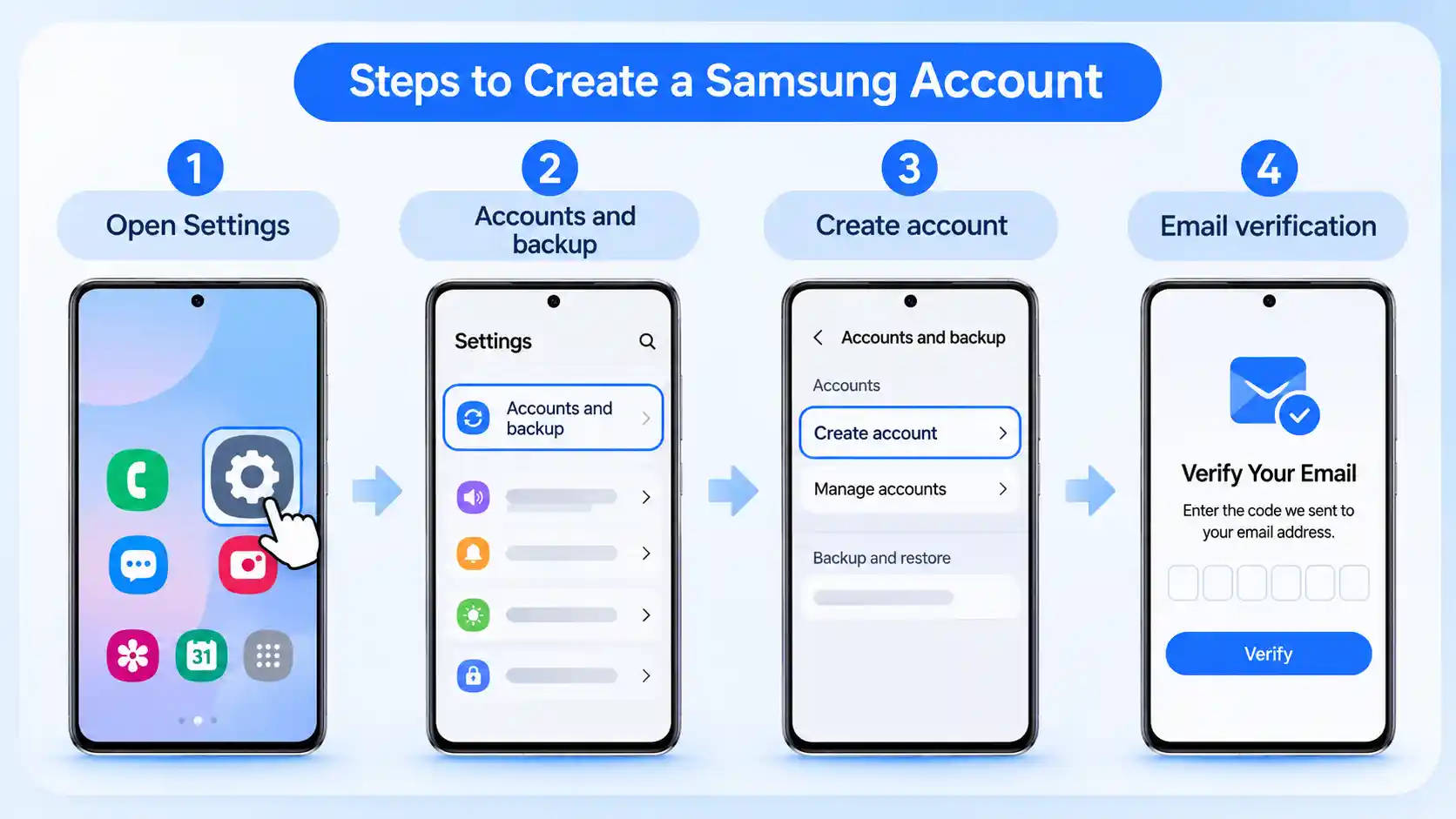
Method 1: Create It on Your Galaxy Phone
- Open Settings.
- Tap Accounts and backup (on some devices, your name or Samsung account appears at the top).
- Tap Manage accounts, then Add account, then Samsung account.
- Select Create account.
- Accept the terms and conditions.
- Enter your email address, a strong password, your name, and your date of birth.
- Verify your email using the code Samsung sends you.
Method 2: Sign Up on the Samsung Website
- Go to the official Samsung Account website (account.samsung.com).
- Click Create account.
- Fill in your details and agree to the terms.
- Confirm your email address through the verification message.
Method 3: Sign Up During Device Setup
When you set up a new Galaxy device, you will see an option to sign in or create an account. Follow the on-screen prompts.
Tip: Use an email address you will have for years, not a temporary or work email. Changing your login ID later can be inconvenient.
How to Log In to Your Samsung Account
Logging in is quick on any device.
On a phone or tablet:
Go to Settings > Accounts and backup > Manage accounts > Add account > Samsung account, then enter your email and password.
On a computer:
Visit the official Samsung Account website, click Sign in, and enter your credentials. You can then manage your profile, security settings, and linked devices.
On a Samsung TV or other device:
Open the account or sign-in menu in settings and follow the prompts. Some devices let you sign in by scanning a QR code with your phone.
If you have turned on two-step verification, you will also need to enter a code sent to your trusted device or phone number.
Samsung Account Password Reset: What to Do If You Forgot It
Forgetting your password is the most common problem, and it is easy to fix if your email or phone number is still accessible.
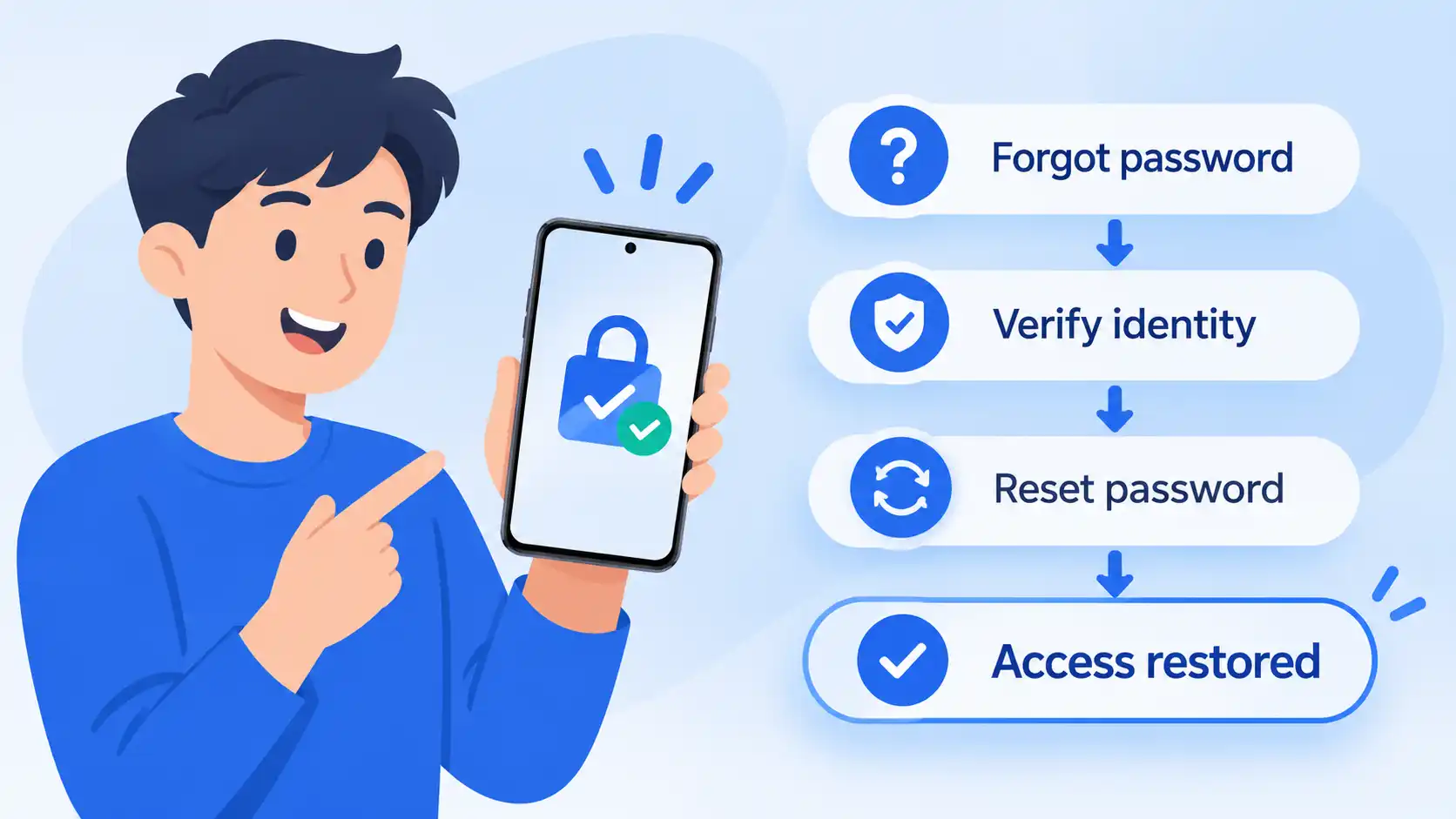
- Open the Samsung Account sign-in page or the sign-in screen on your device.
- Select Forgot password or Find password.
- Enter your Samsung Account email address.
- Choose how to receive your verification: email or phone number, depending on what you set up.
- Enter the code you receive.
- Create a new password and confirm it.
Choose a password that is long and unique, ideally 12 characters or more, mixing letters, numbers, and symbols. Do not reuse passwords from other sites.
Samsung Account Recovery: Forgot Your Email or Locked Out?
Sometimes the problem is bigger than a forgotten password. Here are the common situations and what to do.
Forgot your Samsung Account email (ID). Use the Find ID option on the sign-in page. You will usually be asked for your name and date of birth, or for a verified phone number linked to the account.
No access to your recovery email or phone number. Try signing in from a device where you are already logged in, because you can often update recovery details from there. If you cannot, contact Samsung Support with proof of ownership, such as your device’s proof of purchase or serial number.
Account locked after too many attempts. Wait for the lockout period to end, then try again. Avoid repeated guesses, which can extend the lock. Use the password reset flow instead.
Two-step verification code not arriving. Check that your phone has signal, confirm your number is correct, and make sure the trusted device is nearby and connected to the internet.
Reactivation Lock after a factory reset. If your phone asks for the previous account after a reset, you must enter the original Samsung Account credentials. If you bought a second-hand phone and cannot sign in, ask the previous owner to remove the device from their account.
How to Keep Your Samsung Account Secure
A few habits will protect your data and prevent lockouts.
- Turn on two-step verification from your account’s security settings.
- Add a recovery email and phone number so you can reset your password later.
- Use a unique, strong password and consider a password manager.
- Review signed-in devices and remove any you no longer use.
- Beware of phishing. Samsung will not ask for your password by email or text. Always check that you are on the official Samsung website before signing in.
- Keep your software updated to receive the latest security patches.
How to Remove or Delete a Samsung Account
If you want to sign out of a device, go to Settings > Accounts and backup > Manage accounts, choose your Samsung Account, and tap Remove account. Back up your data first, because removing the account can disconnect cloud sync and some features.
To permanently delete the account, use the account management page on the Samsung Account website. Deleting an account is permanent and may remove access to purchases, cloud data, and linked services, so think carefully before you confirm.
Frequently Asked Questions
Is a Samsung Account free?
Yes. Creating and using a Samsung Account costs nothing. Some services, such as extra cloud storage, may have paid options in certain regions.
Can I create a Samsung Account without a phone number?
Usually yes, since an email address is the main requirement. However, adding a phone number makes recovery much easier.
Can I use one Samsung Account on multiple devices?
Yes. You can sign in on several phones, tablets, watches, and TVs with the same account.
Is a Samsung Account the same as a Google Account?
No. They are separate accounts with different purposes, although many Galaxy users have both.
What happens to my data if I forget my Samsung Account password?
Your data remains safe in your account. Once you reset your password, you regain access.
Can I change my Samsung Account email?
In many cases you can update your ID from the account settings, depending on how it was created and your region.
Final Thoughts
Your Samsung Account is the key to getting the most out of your Galaxy devices. Setting it up properly takes only a few minutes: use an email you trust, add a recovery phone number, and turn on two-step verification. If you do get locked out, the password reset and recovery tools will get you back in as long as your recovery details are up to date.
Take a moment today to open your account settings, confirm your recovery information, and review your signed-in devices. A little preparation now saves a lot of frustration later.
Comments
0Share your thoughts about this article.
Leave a Comment
Join the discussion.
Login to join the discussion.
Login to CommentNo comments yet
Be the first to join the discussion.