How to Factory Reset iPhone: Step-by-Step Guide (2026)
Learn how to factory reset iPhone in minutes. Step-by-step methods to reset iPhone from Settings, a computer, or without a passcode. Back up first.

Need to know how to factory reset iPhone? The quickest way is to open Settings, tap General, tap Transfer or Reset iPhone, and choose Erase All Content and Settings. Enter your passcode and Apple Account password, confirm, and your iPhone will wipe itself and restart like new.
Table of Contents
People reset their iPhone for many reasons: selling it, giving it to family, fixing a stubborn bug, or starting fresh. This guide shows you how to reset iPhone in every way that matters, from Settings, from a computer, and without a passcode. You will also learn the difference between a restart, a force restart, and a full factory reset.
Quick Answer: How to Factory Reset iPhone
- Back up your iPhone.
- Open Settings.
- Tap General.
- Scroll down and tap Transfer or Reset iPhone.
- Tap Erase All Content and Settings.
- Tap Continue, then enter your passcode and Apple Account password.
- Confirm by tapping Erase iPhone.
The process usually takes a few minutes. Your iPhone will restart and show the Hello setup screen when it is done.
What Does a Factory Reset Do?
A factory reset erases everything you added to the phone: photos, apps, messages, accounts, settings and saved passwords. It also signs you out of your Apple Account and turns off Find My iPhone. The software goes back to a clean state, as if you had just bought the phone.
It does not remove iOS itself, and it does not undo a software update. Your iPhone stays on the latest version it was running.
Important: A factory reset cannot be undone. If you do not have a backup, your data is gone for good.
Before You Reset Your iPhone
A few minutes of preparation will save you from losing important data or getting locked out.
1. Back up your iPhone.
Go to Settings, tap your name, tap iCloud, tap iCloud Backup, and tap Back Up Now. You can also back up to a Mac or a Windows PC using Finder or iTunes.
2. Sign out of your Apple Account.
If you are selling or giving away the phone, go to Settings, tap your name, scroll down and tap Sign Out. This turns off Find My iPhone and Activation Lock, which lets the next owner set up the phone.
3. Unpair your Apple Watch.
If you use an Apple Watch with this iPhone, unpair it first so its data is backed up properly.
4. Charge the battery.
Make sure you have at least 50% charge, or plug the phone in. A reset that is interrupted can cause problems.
5. Connect to Wi-Fi.
A stable connection helps with backups and with setting up the phone afterward.
Method 1: Factory Reset iPhone From Settings
This is the easiest method, and it works if you know your passcode.
- Open the Settings app.
- Tap General.
- Scroll to the bottom and tap Transfer or Reset iPhone. On older versions of iOS, this is called Reset.
- Tap Erase All Content and Settings.
- Tap Continue.
- Enter your passcode when asked.
- Enter your Apple Account password to turn off Find My and Activation Lock.
- Tap Erase iPhone to confirm.
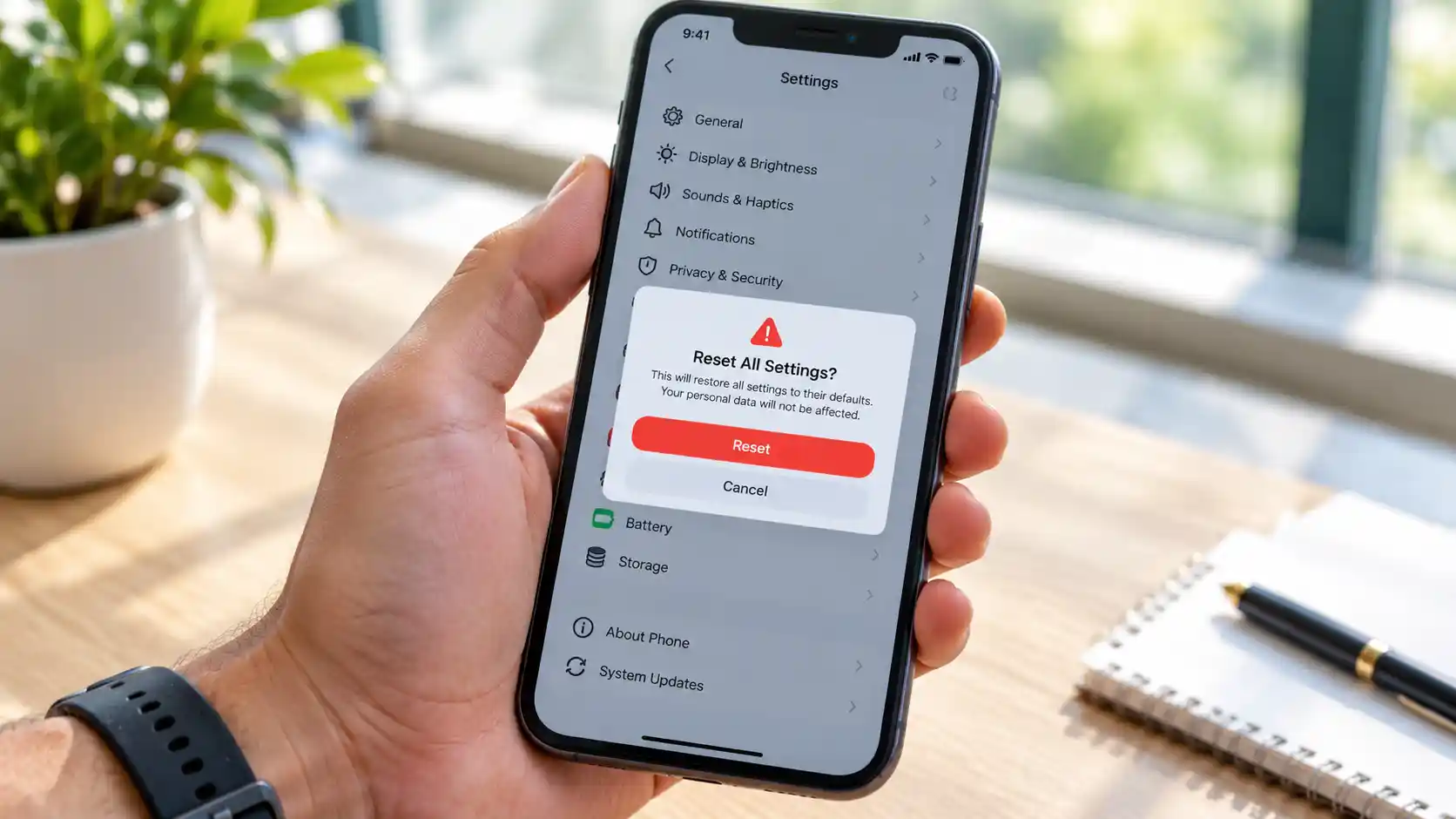
Your iPhone will show the Apple logo with a progress bar, then restart to the setup screen. If you have an eSIM, iOS may ask whether to keep or erase it. Choose to erase it if you are selling the phone, or keep it if you are keeping your number.
Method 2: Factory Reset iPhone Using a Computer
Use this method if your iPhone will not turn on properly, is stuck on the Apple logo, or if you cannot use Settings.
- Connect your iPhone to your computer with a cable.
- On a Mac with macOS Catalina or later, open Finder. On a Windows PC or older Mac, open iTunes (or the Apple Devices app).
- Select your iPhone when it appears.
- If asked, tap Trust This Computer on the phone and enter your passcode.
- Click Restore iPhone.
- Click Restore again to confirm.
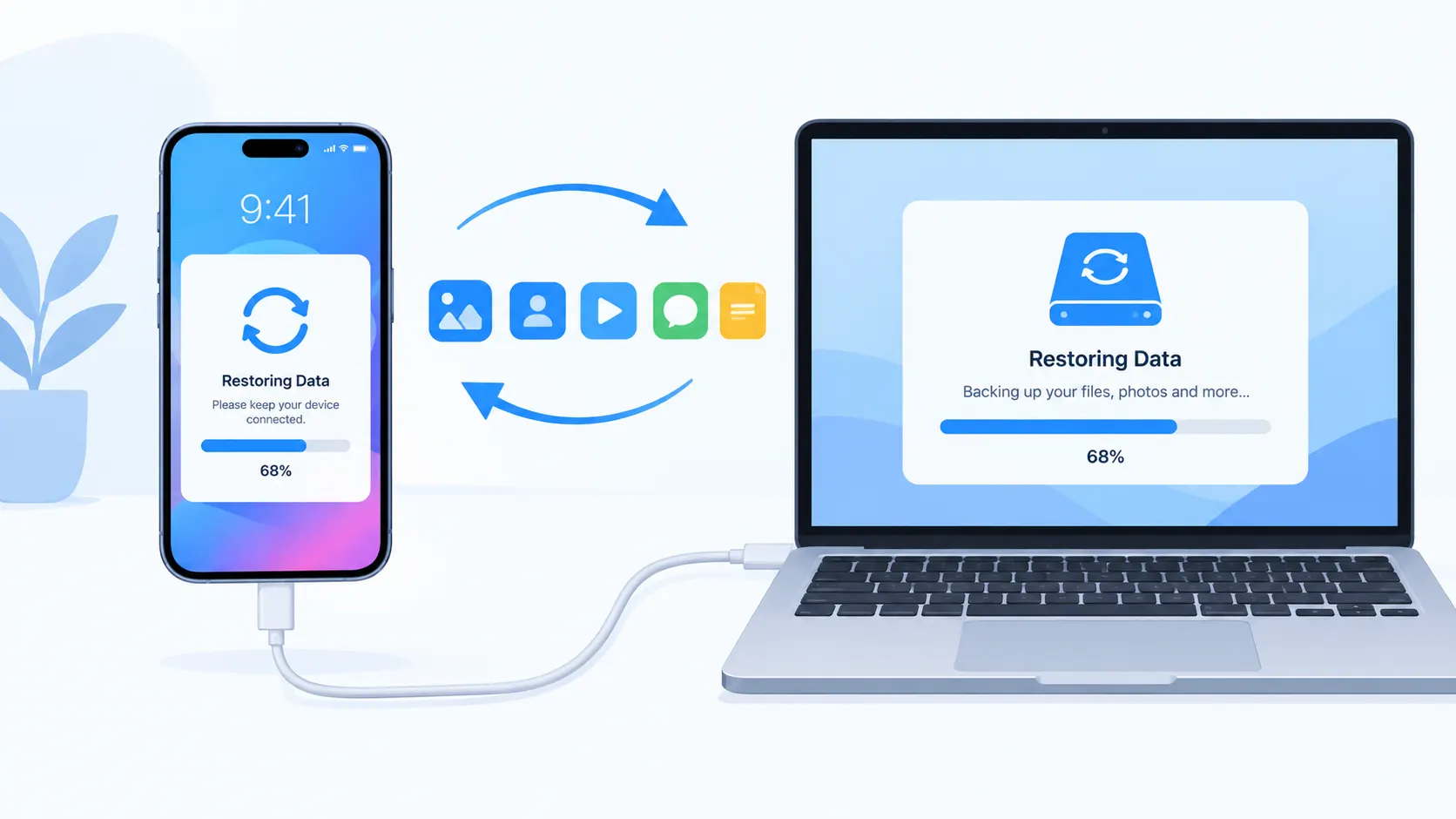
Your computer will download the latest iOS software and install it on your iPhone. This can take 15 to 30 minutes, depending on your internet speed. Do not unplug the cable until it finishes.
Method 3: Reset iPhone Without a Passcode or Password
If you forgot your passcode, you can still erase the phone, but you will lose your data unless you have a backup.
Option A: Use the lock screen.
After several wrong passcode attempts, newer versions of iOS show an Erase iPhone option on the lock screen. Tap it, follow the steps, and sign in with your Apple Account password.
Option B: Use Recovery Mode.
- Connect your iPhone to a computer.
- On iPhone 8 or later, press and release Volume Up, press and release Volume Down, then hold the Side button until the recovery mode screen appears.
- On your computer, click Restore when prompted.
Option C: Use Find My on iCloud.
Sign in at iCloud.com/find with your Apple Account, select your iPhone, and choose Erase This Device.
Note: After erasing, Activation Lock may ask for the original Apple Account email and password. If you bought a used iPhone, ask the seller to remove it from their account first.
Different Ways to Reset iPhone
Not every problem needs a full factory reset. Try a lighter option first.
|
Reset type |
What it does |
Deletes your data? |
|---|---|---|
|
Restart |
Turns the phone off and on |
No |
|
Force restart |
Forces a restart when the phone is frozen |
No |
|
Reset All Settings |
Returns settings to default, keeps your files |
No |
|
Reset Network Settings |
Clears Wi-Fi, Bluetooth and VPN settings |
No |
|
Erase All Content and Settings |
Full factory reset |
Yes, everything |
If your Wi-Fi is acting up, try Reset Network Settings. If apps are slow or the screen is frozen, try a restart first.
How to Restart and Force Restart iPhone
A force restart can fix a frozen screen without erasing anything.
| iPhone model | How to force restart |
|---|---|
| iPhone 8 and later (including iPhone 17) | Press and release Volume Up, press and release Volume Down, then hold the Side button until the Apple logo appears |
| iPhone 7 | Hold Volume Down and the Side button together until the Apple logo appears |
| iPhone 6s and iPhone SE (1st generation) | Hold the Home button and the Side or Top button together until the Apple logo appears |
Troubleshooting Common Problems
Erase All Content and Settings is greyed out.
This can happen if a Screen Time restriction or a management profile is active. Turn off restrictions in Settings, then Screen Time, then Content & Privacy Restrictions, and try again.
The reset is stuck on the Apple logo.
Wait at least 30 minutes, since large phones can take a long time. If nothing changes, force restart the phone or use Recovery Mode with a computer.
It asks for an Apple Account password I do not remember.
Reset your password at iforgot.apple.com. You cannot finish the reset or remove Activation Lock without it.
Not enough storage for the restore.
Free up space on your computer, or use a different backup, then try again.
The computer does not see my iPhone.
Try a different cable or USB port, update Finder or iTunes, and make sure you tapped Trust on the phone.
What to Do After the Reset
Once your iPhone restarts, you will see the Hello screen. From there:
- Keeping the phone: Choose Restore from iCloud Backup or Transfer from another iPhone to get your data and apps back, or set it up as a new iPhone.
- Selling or giving it away: Do not sign in. Just power the phone off and hand it over. The next owner can set it up with their own account.
- Before you sell: Also remove your SIM card, and check that the phone no longer appears in your Find My device list.
FAQs
How long does it take to factory reset an iPhone?
Usually 5 to 15 minutes from Settings. A computer restore can take 15 to 30 minutes or more, because it downloads iOS.
Does a factory reset delete everything?
Yes. It erases all photos, apps, messages and settings. Back up first if you want to keep anything.
Will a factory reset remove a virus or fix my phone?
It can fix many software problems, such as bugs, crashes and slow performance. It will not fix hardware damage like a broken screen or battery.
Can I factory reset an iPhone without a computer?
Yes. Use Settings, then General, then Transfer or Reset iPhone, then Erase All Content and Settings.
Can I factory reset iPhone without the Apple Account password?
You can erase the phone using Recovery Mode on a computer, but Activation Lock will still ask for the original Apple Account after the reset.
Does a factory reset update iOS?
Not from Settings. A computer restore installs the latest available iOS version.
What is the difference between reset and factory reset?
Reset can mean a restart or resetting only certain settings. A factory reset erases all your data and returns the phone to a new state.
Conclusion
Now you know how to factory reset iPhone in the easiest and safest way. Back up your data, sign out of your Apple Account, and use Erase All Content and Settings from the Settings app. If your phone will not respond, use a computer or Recovery Mode instead.
Try a restart or Reset All Settings before you do a full reset, because many problems do not need a complete wipe.
Comments
0Share your thoughts about this article.
Leave a Comment
Join the discussion.
Login to join the discussion.
Login to CommentNo comments yet
Be the first to join the discussion.